Launch NEXUS IC as an App
After you log in and open the NEXUS IC application (see SaaS Login), it runs in a browser tab by default. If you prefer, you can launch NEXUS IC as an app in its own window using the Thinfinity Remote Workspace app.
Install and Launch for the First Time
The first time you launch NEXUS IC as an app, you need to install the Thinfinity Remote Workspace app. The steps below use Microsoft Edge as an example:
Log in and open NEXUS IC in a browser tab following the standard process (see SaaS Login).
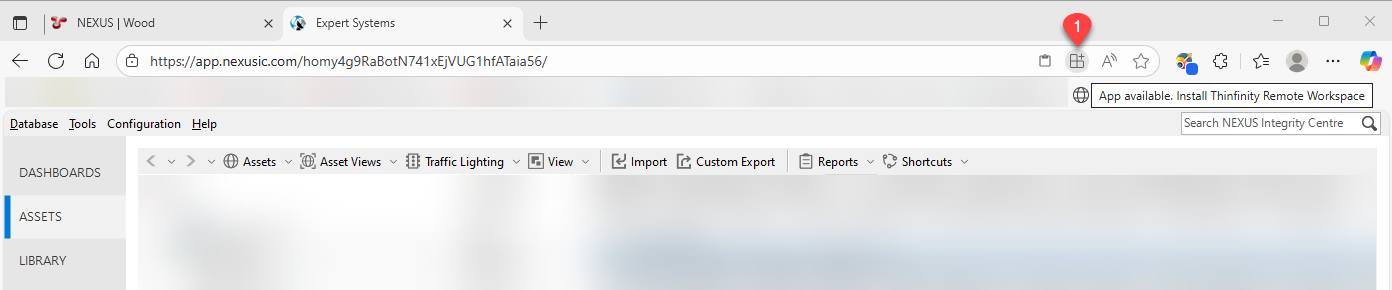
In the address bar, click the icon with the tooltip Install Thinfinity Remote Workspace.
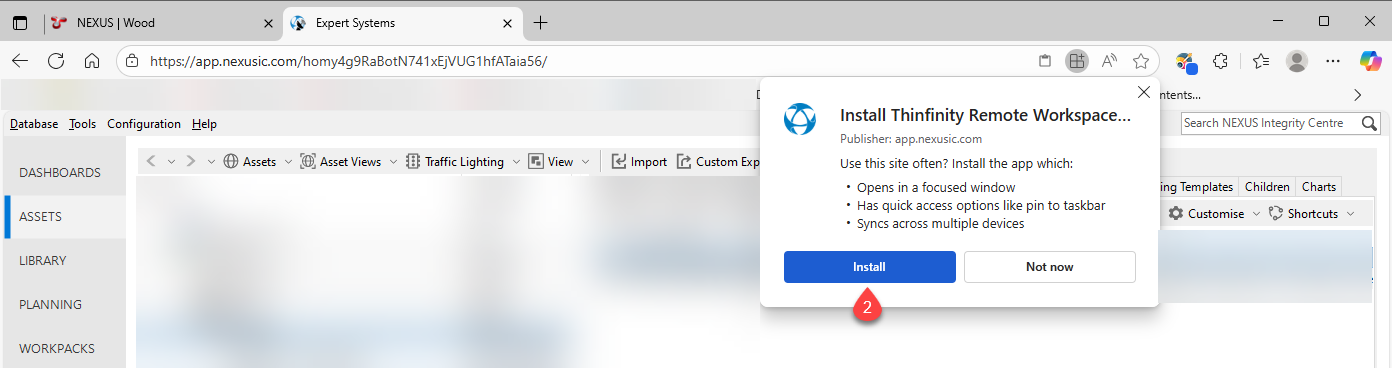
In the dialog that appears, click Install.
Result
The application opens in a new Thinfinity Remote Workspace window. Depending on your browser, you may see a message confirming the installation. You may also be asked to allow actions such as creating a desktop shortcut, pinning the app to the taskbar or enabling auto-start on device login. We recommend not pinning the app to the taskbar because it will not launch NEXUS IC automatically. You must open NEXUS IC as an app from the browser each time.
Tip
If the application does not fill the entire window, resize the window to refresh the display.


Launch After Installation
Once the Thinfinity Remote Workspace app is installed, you can launch NEXUS IC as an app using the steps below (examples from Microsoft Edge):
Log in and open NEXUS IC in a browser tab following the standard process (see SaaS Login).
In the address bar, click the icon with the tooltip Open in app.

If prompted, click Open in the dialog that appears.
Result
The application opens in a new Thinfinity Remote Workspace window.
