Add and Manage Multimedia
You can add multimedia files (for example, photos, drawings, sketches) to your event records on the Event Details screen when maintaining event data (see Maintain Event Details).
Add Multimedia
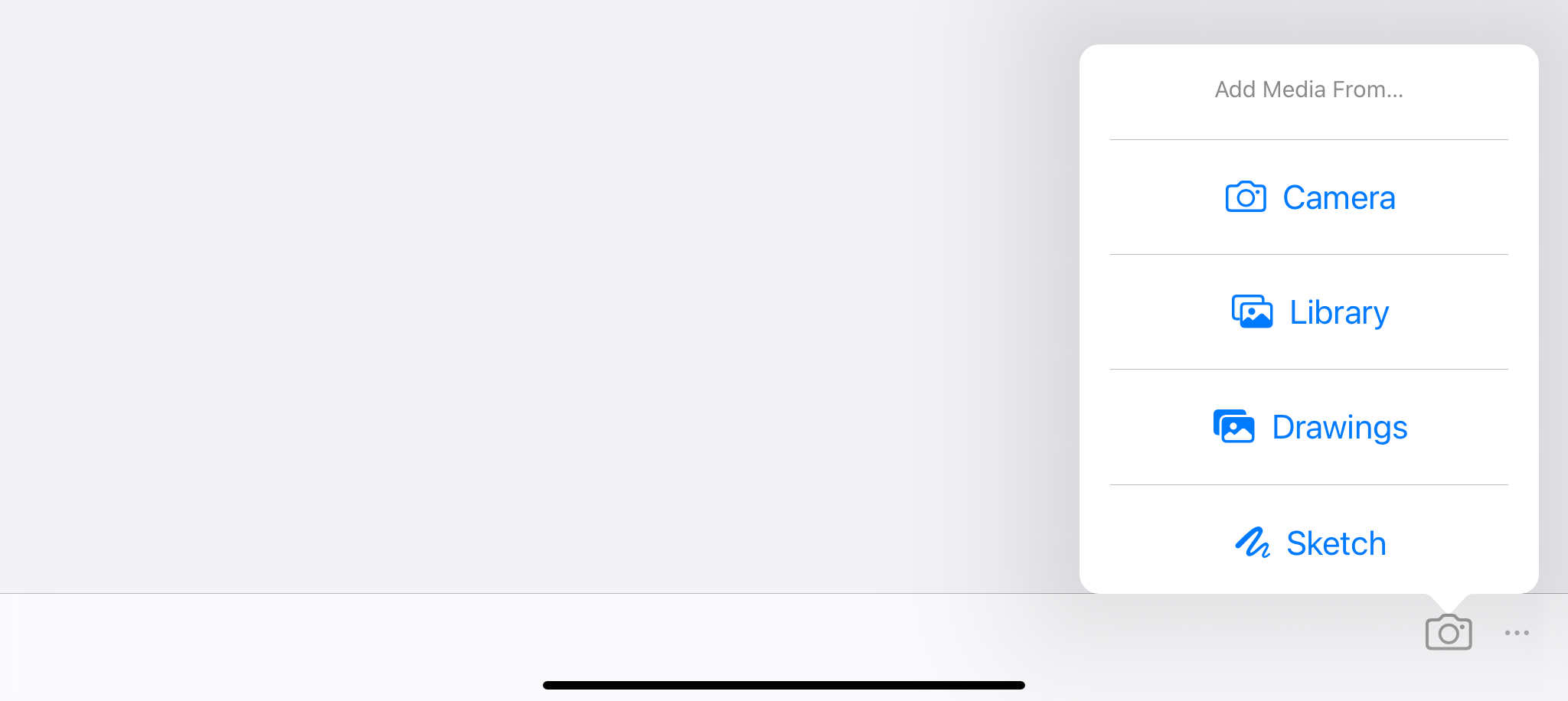
To add multimedia, tap the  button at the bottom of the Event Details screen. A menu will appear with the following options:
Camera: Take a photo using your device’s camera.
Note: If you enabled it under Settings, photos are automatically saved to your tablet’s photo library when taking new photos.
Library: Select one or more images from your device’s photo library.
Drawings: Choose a drawing with layers linked to this task’s asset. If no linked drawings are available, this option will be disabled.
Sketch: Open a markup canvas to create a sketch using your device’s native markup tools. The sketch is saved as an image and attached to the Event Details. For more information, see Markup.
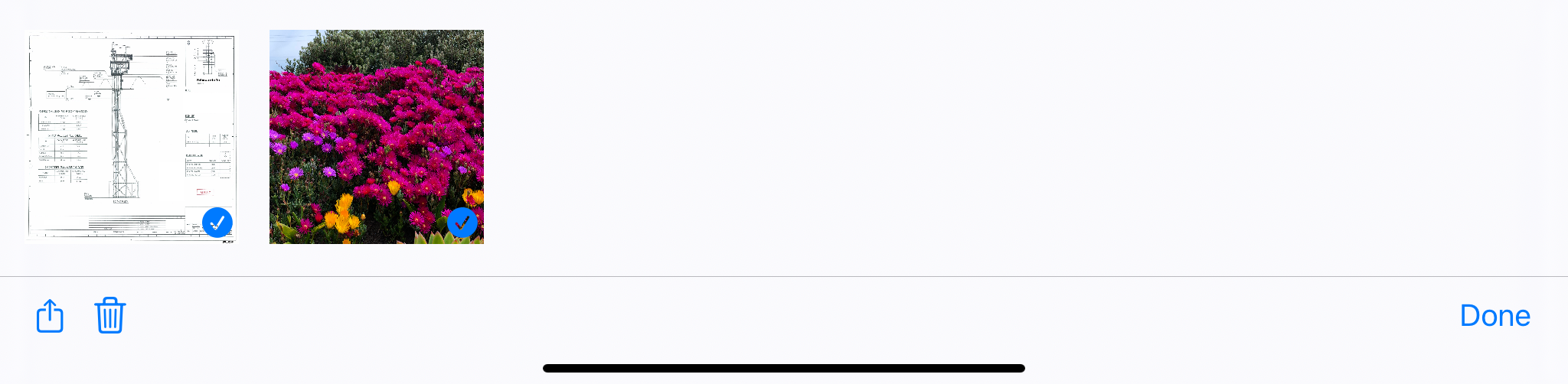
All added images appear in a banner along the bottom of the Event Details screen.
View and Edit Images
Tap any image in the banner on the Event Details screen to view it fullscreen. You can swipe between images and use markup tools to mark up or edit them.
For more information, see Edit and Markup Images.
Delete or Share Multimedia Files
When you tap the selection  button at the bottom right of the Event Details screen, you can select multiple images and perform either of the following actions:
Delete images by tapping the
trash can icon.
Share images (for example, to a message or email, to the Photos app, to a printer, to your file directory, etc.) by tapping the
share icon.
Note
On Windows tablets, you can only delete or download the images. Sharing is not supported.