Configure Traffic Light Categories
Under , you can create and manage traffic light categories. Categories group traffic lighting rules, and each category appears as a submenu in the Traffic Lighting toolbar menu.
When you open the Traffic Lighting menu, clicking a category expands its submenu and shows the traffic lighting rules assigned to it, as shown below:
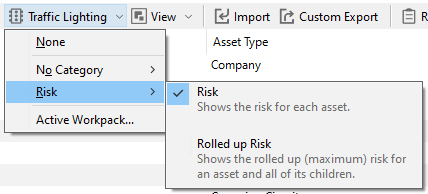
If a traffic lighting rule has no category assigned, it is automatically listed under the No Category group.
Defining a Category
To define a new category:
Choose to open the Configuration - Traffic Light Categories dialog.
Click Add.
Enter the name of the category.
Save your entries.
The new category then appears as a submenu in the Traffic Lighting toolbar menu. If any rules have been assigned to it (see Add/Edit Traffic Light Dialog), it will appear within that submenu.
See also