Customise
The Customise toolbar button enables you to control which columns appear in the active grid and how rows are displayed.
These settings are saved for each user and will be remembered next time the user logs into NEXUS IC.
Note
The settings are saved to a file called Integrity Centre.Settings in C:\Users\[USER_NAME]\AppData\Roaming\NEXUS.
Under the Customise toolbar button, you have the following options:
Asset Format
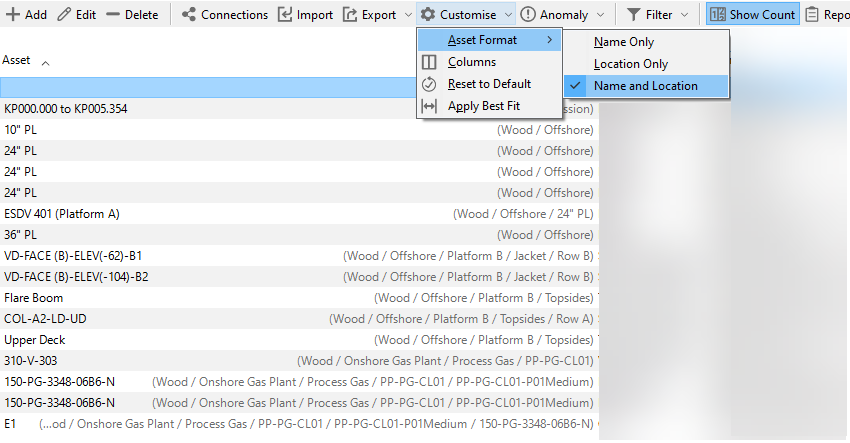
Choose what appears in the Asset column:
Name Only: Displays only the asset name.
Location Only: Displays the location of the asset in the asset tree.
Name and Location: Displays both the asset name and location.
Note
If an asset is selected in the asset tree, locations are displayed relative to the selected asset. Otherwise, the full asset location is displayed.
To view the full asset location, hover over the location value in the Asset column.
This option is available only if the Asset column is present. Sorting in this column is always based on the Full Location, even if only the name is shown.
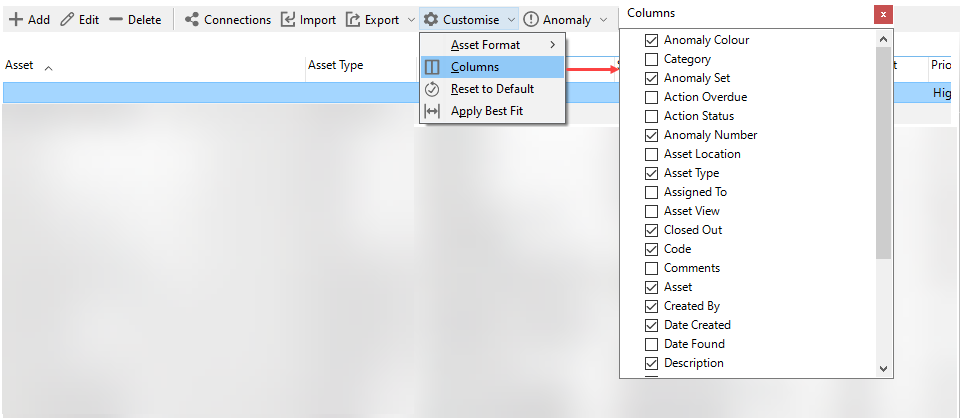
Columns
Select columns that you want to be displayed or deselect columns that you want to hide from the grid. You can also hide columns by right-clicking the column header and choosing Hide from the context menu.
Reset to Default
Restores the original column layout and sizes.
Apply Best Fit
Automatically resizes visible columns for optimal display.