Manage Risk Assessments and Scenarios
You can review and edit risk assessments and assign scenarios on the Risk tab of the ASSETS, PLANNING or WORKPACKS screen.
Prerequisites
You have assigned a risk model to the asset as described in Assign Risk Models.
Edit Risk Assessments
You can update the values of editable fields within a risk model. You cannot edit Pass Thru and Calculation values.
On the Risk tab, select the required risk assessment or scenario and click
 Edit from the toolbar.
Tip
You can select multiple risk assessments or scenarios and edit their values in bulk. When editing multiple risk assessments, all selected assessments must use the same risk model.
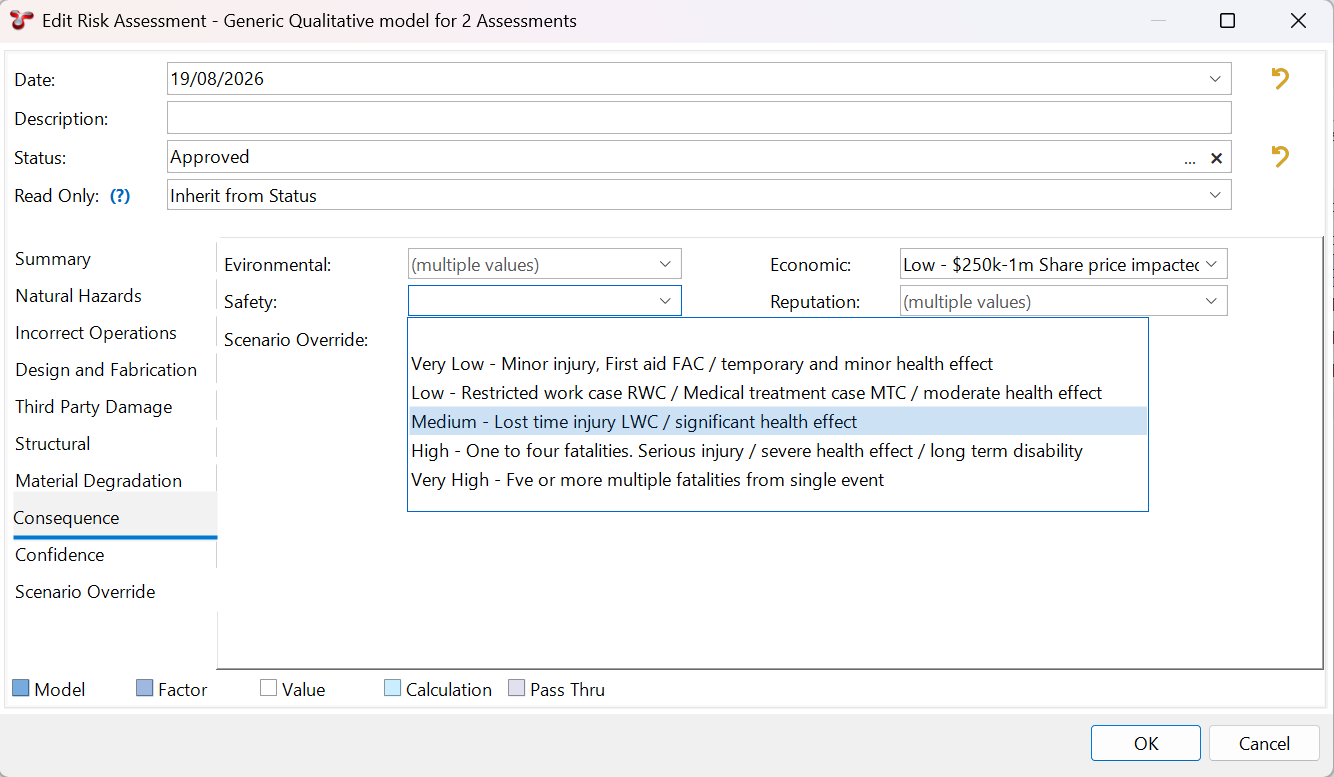
In the Edit Risk Assessment dialog (risk assessment editor), review or update the general properties of the assessment in the upper section of the dialog.
Field Name
Description
Date
Specifies the date of the risk assessment. It is automatically populated when the risk model is assigned to the asset, or copied from an existing risk assessment.
Description
Optional text that provides additional information about the risk assessment. You can enter up to 100 characters.
Status
Allows you to manage workflows for risk assessments. For example, statuses can be used to indicate that an assessment is Prepared, Approved, Complete or Archived. Click
 at the end of the row to add or edit a status. When creating or editing a status, you can select Read Only to prevent further changes to assessments using that status. You can also preconfigure statuses as described in Configure Risk Assessment Statuses.
Read Only
This functionality is currently under construction.
In the lower section of the dialog, you can review or update the risk assessment using the tabs in the left sidebar:
Summary: Displays the risk model hierarchy and calculated results.
Factors that contain editable fields are displayed as individual tabs. Selecting a factor tab displays the child elements of that factor as editable fields in a form. Update the field values as required.
Note
In case you’re editing more than one risk assessment at once and they have different values for a given field, the value appears as (multiple values).
Click OK to save your changes.
Manage Risk Assessment Scenarios
A scenario represents a particular set of conditions or assumptions under which an asset’s risk is assessed.
Scenarios allow you to compare the results of the same risk model under different circumstances. The meaning of a scenario depends on how the risk model has been configured. For example, a risk model might use scenarios to compare different consequence types, such as Economic, Safety or Environmental consequences, or different operating conditions.
Each scenario maintains its own assessment values and produces its own risk result.
Risk scenarios can be predefined under . For more information, see Configure Risk Scenarios.
Note
If multiple scenarios are used for an asset, any information that varies between scenarios must be stored as values within the risk model.
Create a Risk Assessment Scenario
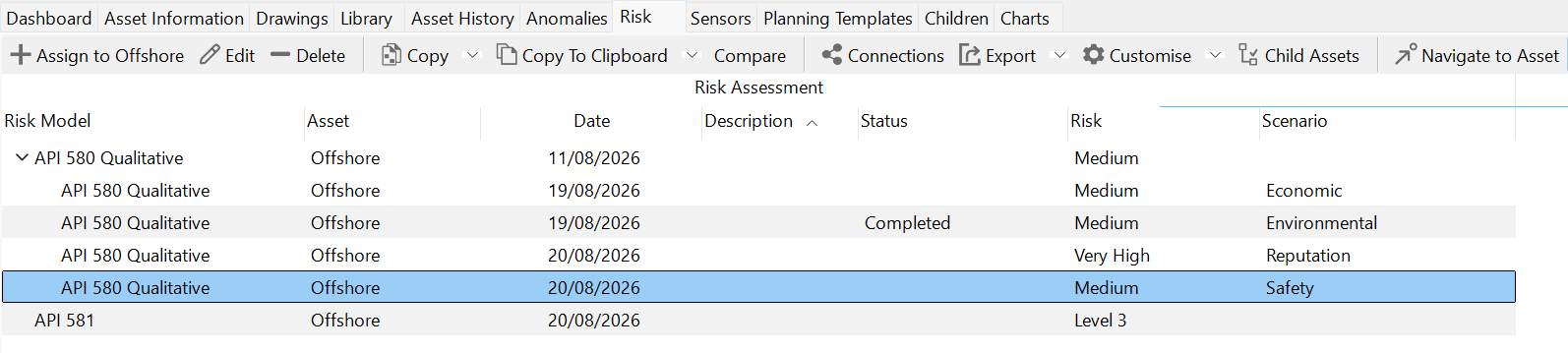
You can create a risk assessment scenario by copying an existing risk assessment into a predefined or new risk scenario.
On the Risk tab, select the risk assessment that you want to use as the basis for the scenario.
Choose from the toolbar.
In the dialog that opens, either:
Select an existing scenario.
Click Add to create a new scenario.
Click OK.
Result
A new scenario is created beneath the selected risk assessment. The scenario inherits the values and settings of the source assessment, allowing you to modify only the values that differ from the original assessment.
The scenario name is displayed in the Scenario column.
Edit a Risk Assessment Scenario
To modify a scenario, edit it in the same way as a risk assessment. Changes made to a scenario affect only that scenario and do not modify the original risk assessment or other scenarios.
For more information, see Edit Risk Assessments.