Configure Survey Sets
Survey sets are used to group survey data associated with inspections. For example, you might create a survey set named 2018 Inspection Campaign or Pipeline A 2018 Inspection to organise data collected during those periods. For more information, see Survey Data Processing.
Manage Survey Sets
You manage survey sets on the Survey Sets screen (), which is divided into two main sections, each with its own grid and toolbar:
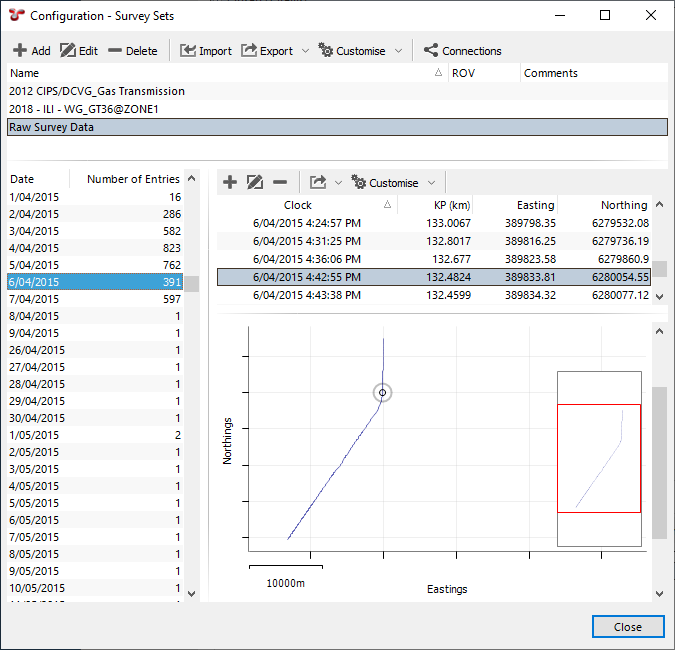
 Survey Set Configuration:
In the upper section of the screen, you can add, edit, import, export and delete survey sets.
You can use the standard toolbar functions for maintaining the survey sets (see Using the Grid).
 Survey Data Management:
In the lower section of the screen, you can see a list of dates when survey data was recorded. If you click on a day, you will see survey data logged on that day on the right-hand side. In the grid, each survey row is linked to the chart below, that is, if you click on a survey point in one pane, it will be highlighted in the other. You can multi-select, too.
From this part of the dialog, you can use the toolbar buttons to do the following:
Add: Add a single survey row
Edit: Modify selected survey rows
Delete: Remove selected survey rows
Export: Export all survey data entries for the given day
Note
Any events that were relying on those rows may not have valid survey data after your updates. If there is another row within the +3/-2 second threshold, the event will use that instead, but if not, the event may now simply have no Easting, Northing, and so on.
Create Survey Sets
On the Survey Sets screen (), you can create survey sets in the following ways:
Add: Click the Add button in the top toolbar and enter a name for the survey set. Optionally, select an ROV (or pig/diver) if the survey data was captured using a specific device. This is especially important for dual operations where multiple devices recorded survey or video data simultaneously.
Import: Click the Import button to load survey data into the survey set (see Import Events). In the Import Survey Data dialog, click Example at the bottom to download a sample import sheet.
Note
For large datasets, importing from a text file (for example, tab-separated or comma-separated values) is typically faster than using Excel.
See also