Connections
The Connections toolbar button allows you to view items that are linked to the active record. It displays elements that have a reference or connection to the selected record.
This feature follows a one-way relationship: it shows items that depend on the active record, not the reverse. For example, when viewing connections for an event, it will show related items such as multimedia and findings. It will not show the asset that the event sits on because the event is connected to the asset, not the asset to the event.
In the Connections dialog, you can perform the following actions:
Edit the selected connection using the Edit button. This opens the appropriate edit dialog for the selected record type. For example, selecting an anomaly opens the Edit Anomaly dialog and selecting a task opens the Edit Task dialog.
Copy the text of the selected connection to the clipboard.
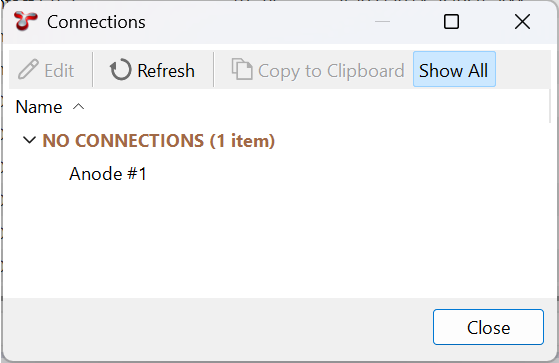
If any selected items have no connections, a Show All button appears in the toolbar. Selecting this reveals a root node called NO CONNECTIONS, which contains all source items without connections. Clearing the button hides these items from the list.
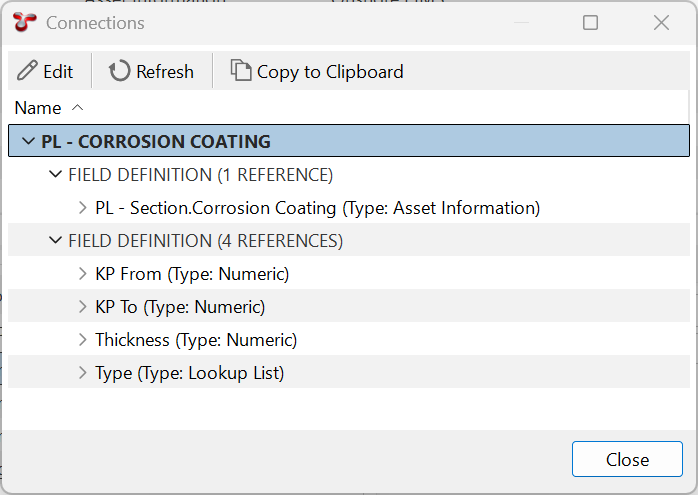
When checking connections for Sub Asset Information records, the dialog displays all field definition nodes in the format [Table Name].[Field Name]. The exception is when the direct parent is the Field Definition Table, in which case only [Field Name] is shown:
Hint
If you are considering deleting an asset or multiple assets from the asset tree, we recommend checking what data may be linked to that asset first. To do this, open the ASSETS screen, right click any asset in the tree and select Connections from the context menu. The Connections dialog will open, categorising and listing all data elements that reference or connect to the selected asset.