Configure Asset Information Groups
Under , you can create and configure Asset Information Group (AIG) forms (see Asset Information Groups (AIGs)). You can then use these forms to record data against assets.
You can create the following types of forms here:
An Asset Information Group (AIG) form (see Asset Information Group (AIG)) has a one-to-one relationship with an asset. Once an AIG is created, you must assign the AIG to an asset type (see Configure Asset Types). This ensures that when you select an asset with that particular asset type, the AIG will be available for selection under the Group toolbar button on the Asset Information tab. You can then enter data into that AIG form against that particular asset.
A Sub Asset Information Group (sub AIG) form (see Sub Asset Information Group (Sub AIG)) is a table within an AIG form, which allows you to have multiple rows within the AIG. This means that multiple records can be created as part of a single instance of an AIG.
Manage AIG/Sub AIG Forms
You manage AIGs and sub AIGs on the Asset Information screen (), which is divided into two main sections, each with its own grid and toolbar:
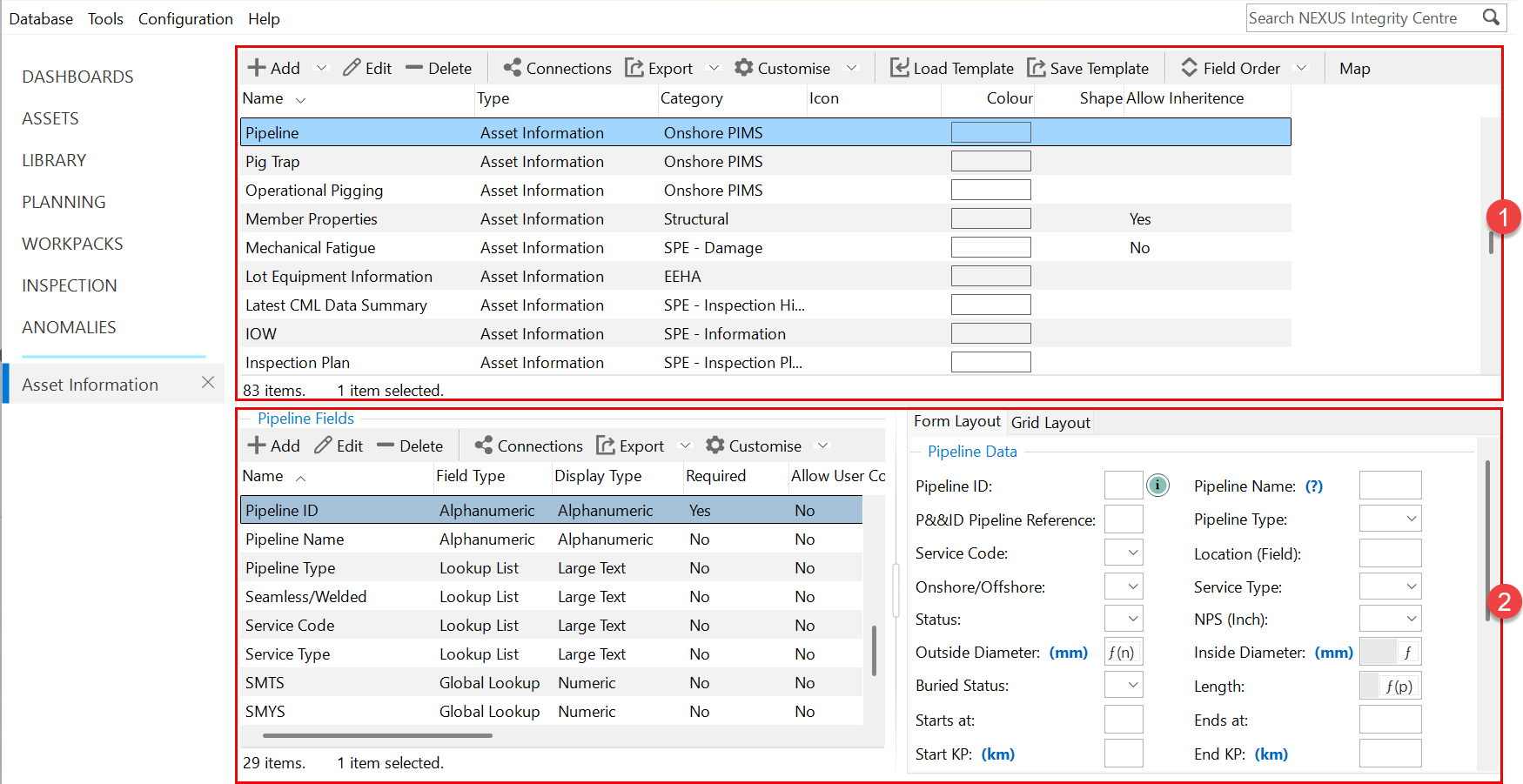
 AIG/Sub AIG Configuration:
In the upper section of the screen, you can add, edit and delete AIG or sub AIG forms. You can use the standard toolbar functions for maintaining the forms (see Using the Grid). In addition, you can:
Save an AIG template and load a previously saved template (see Load and Save AIG Templates).
Use the Field Order button to move a field up or down in the form or grid. For example, if you want to place a field between two other fields in the form, select Form … from the drop-down list, and in the Form Field Order dialog, you can move the field with the Move Up or Move Down buttons available in the toolbar.
Using the IC-Inspector… item under this button, you can also define the order of asset information fields that appear under ASSET INFORMATION when checking task information in IC-Inspector.
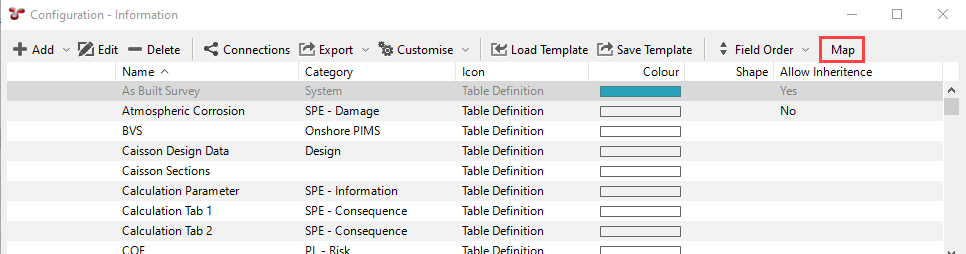
Check the dependency map using the Map button (see View Dependency Map).
 Configuration of Fields:
In the lower section of the screen, you can add, edit or delete fields within a selected AIG or sub AIG and use the standard toolbar functions for maintaining the fields within the forms (see Using the Grid). You can also review how fields appear in the form or grid layouts.
Create AIG/Sub AIG Forms
See the steps below for the basic process of creating a new AIG or sub AIG form:
Under , click Add at the top of the Asset Information screen.
Select whether you want to create a new AIG or a sub AIG form.
The Add Table Definition dialog appears. The title of the dialog reflects that form data is stored in tables in NEXUS IC.
Specify the main table parameters in the Add Table Definition dialog. For more information, see Add/Edit Table Definition Dialog.
Note
When you create the table for the first time, not all tabs are visible in the dialog. Save the table, select it and click Edit to return to the dialog with all the tabs visible.
Click OK.
Add new fields to the table by choosing Add from the bottom toolbar of the Asset Information screen.
The Add Field Definition dialog appears.
Note
When you create the field for the first time, not all tabs are visible in the dialog. Save the field, select it and click Edit to return to the dialog with all the tabs visible.
Specify the main field parameters in the Add/Edit Field Definition dialog.
In this dialog, you can define the main properties of the field, configure its layout, assign functions, set up workflow rules and anomaly triggers, and so on. For more information, see Add/Edit Field Definition Dialog, Set Up Anomaly Triggers and Set Up Workflow Rules.
Click OK.
Example
For an example about how to add a new global table lookup field to an existing AIG, see Example: Set Up Global Lookup Field. For an example about how you can use a global table as a global table link in an AIG, see Example: Assign Global Table Link to AIG.
Load and Save AIG Templates
Click Save Template on the toolbar to export the selected AIG/Sub AIG form and its related configuration to a .table file.
When saving a template, NEXUS IC identifies all dependent items associated with the form, such as asset information forms, events, function definitions, lookup tables or risk models. A dependency selection dialog is displayed, allowing you to choose which related items to include in the exported file.
To import a previously saved template, click Load Template. This allows you to load the AIG template into the current database or another database.
If the AIG template already exists in the database, the imported version overwrites the existing template and does not create a copy of it. The same behaviour applies to any related items included in the .table file, such as asset information fields and lookup tables.
View Dependency Map
The dependency map is a visual representation of an Asset Information Group (AIG), Event Type’s, or global table’s dependencies.
You can access the dependency map by choosing Map in the toolbar of the configuration dialogs when configuring AIGs (see Configure Asset Information Groups), event types (see Configure Event Types) or global tables (see Configure Global Tables).
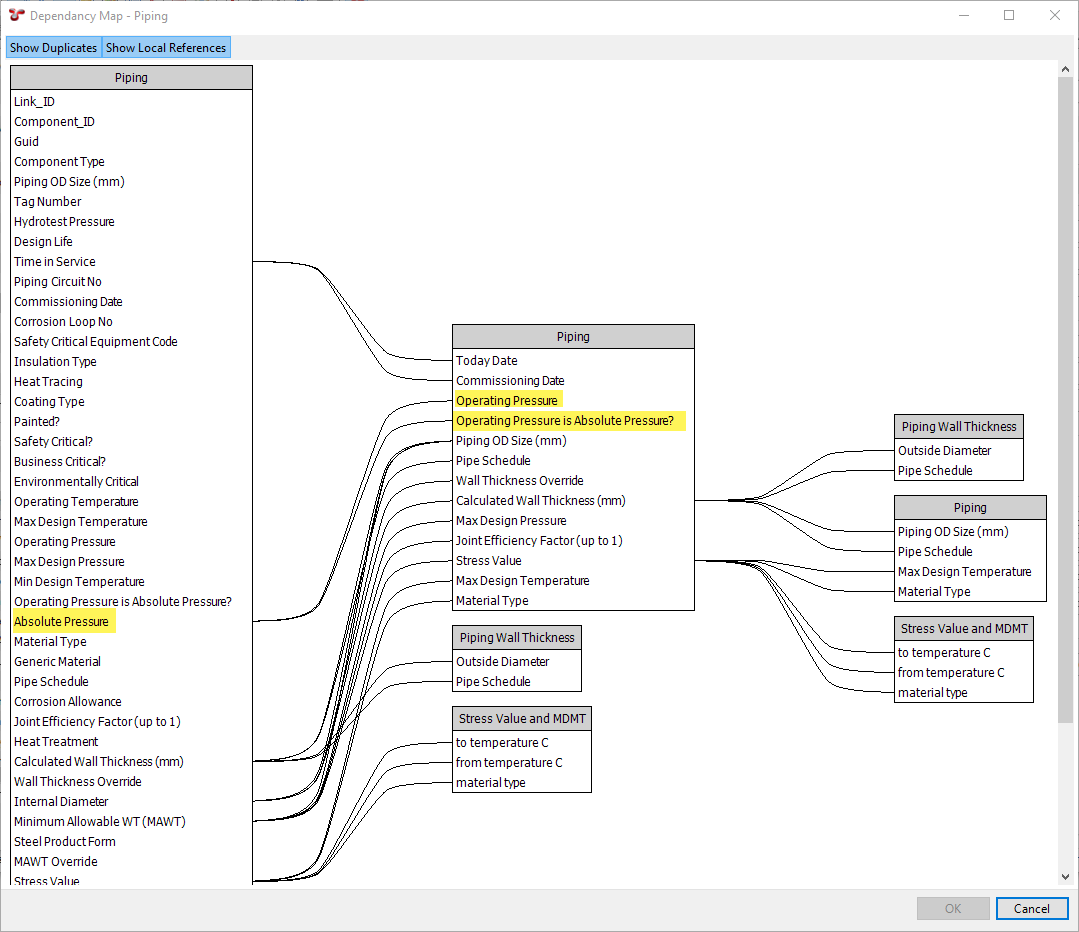
The map is represented as a series of interlinked fields grouped in columns, each column representing the AIG/Event Type/Global Table to which the fields belong.
The map is hierarchically arranged from left to right, with the target AIG/Event Type/Global Table located in the left-most column, and its dependencies and sub-dependencies located to the right.
You can also toggle the view using the following buttons at the top of the dialog:
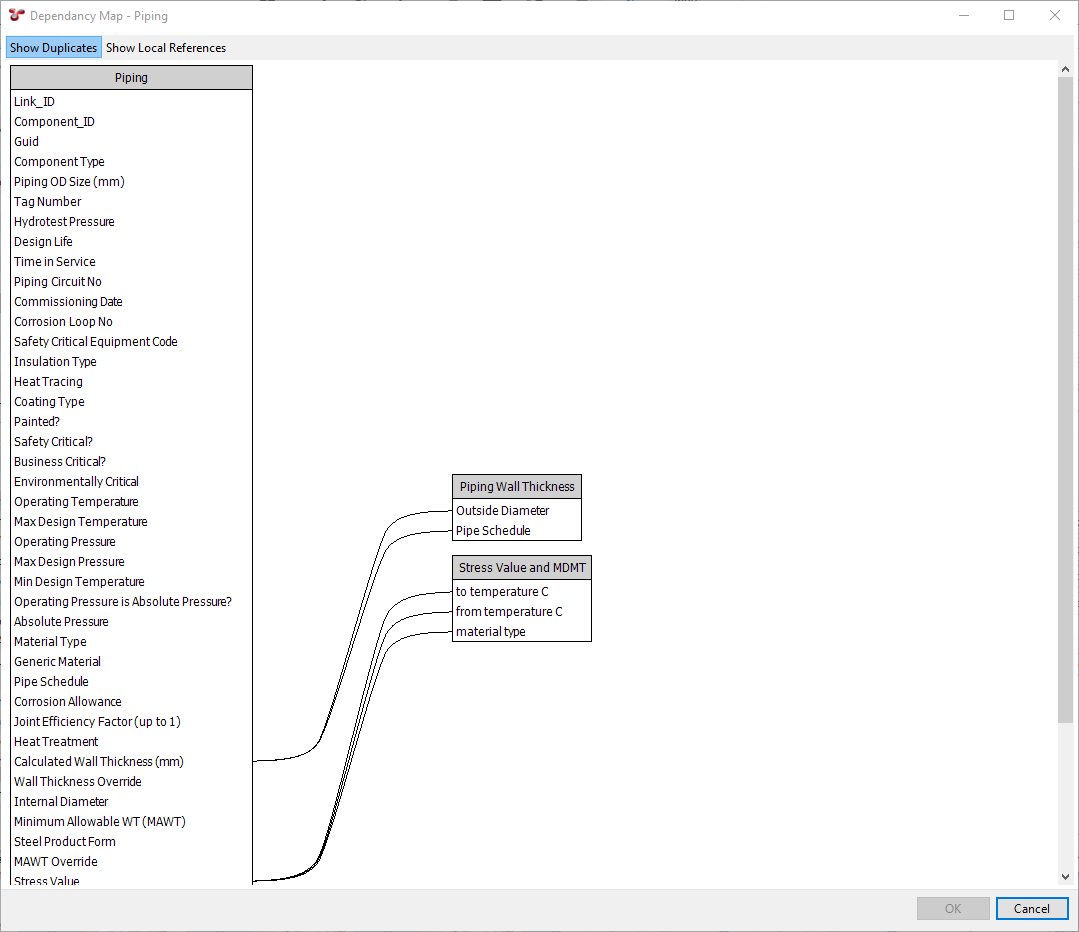
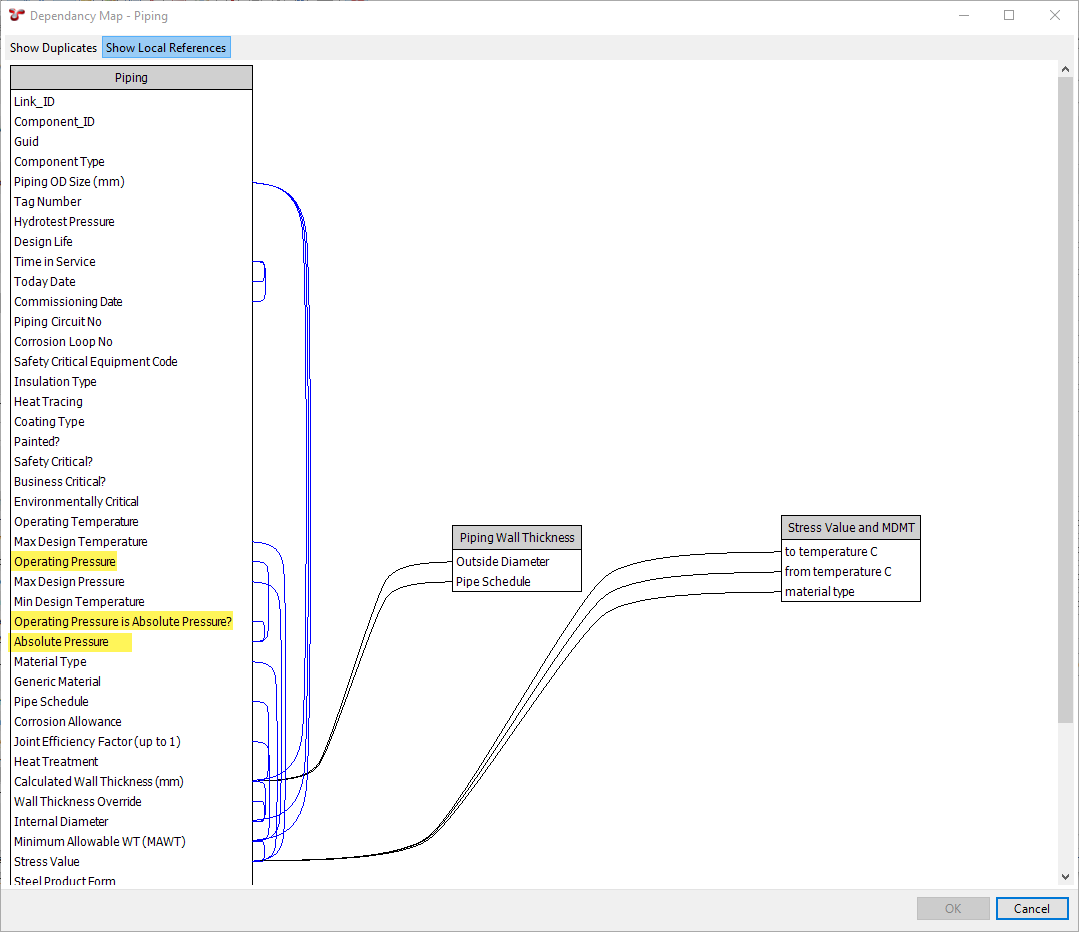
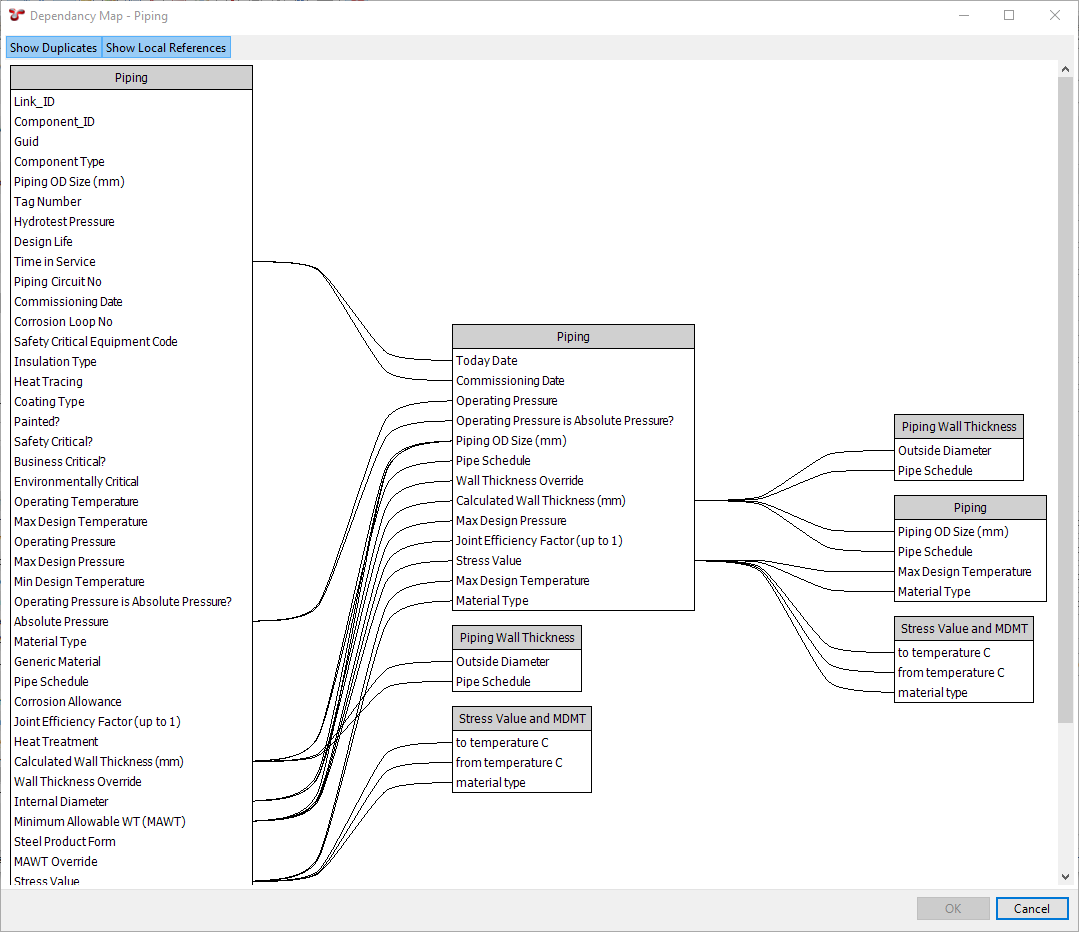
Show Duplicates: If this button is switched on, and a field has a reference to another field in the same AIG/Event Type/Global Table, the field and the AIG/Event Type/Global Table will be displayed again in a separate column. If you switch this button off, the fields will be displayed only once and any self-referential dependencies will be displayed as a closed loop in a single column.
For example, if you have a field called Absolute Pressure in the Piping AIG, which has references to two other fields from the same Piping AIG, the dependency map is displayed as follows:
Show Duplicates button ON:
Show Duplicates button OFF:
Show Local References: If this button is switched on, and a field has a reference to another field within the same AIG/Event Type/Global Table, this dependency will be displayed on the map. If you switch this button off, these self-referential dependencies will not be displayed at all.
See how the example mentioned above is displayed when toggling this button on or off:
Show Local References button ON:
Show Local References button OFF: