In-Grid Filtering
In most grids in NEXUS IC, if the grid has focus and you start typing, the grid automatically filters the displayed rows based on the text entered. For example, if you type “Pipe” (without the quotation marks), only rows containing “Pipe” are shown, while other rows are temporarily hidden.
In-Grid Filtering searches all text fields, including the Name column and any other text fields in the grid. It does not search fields of type Lookup List. A blue arrow in the column header indicates which fields are included in the filter.
You can clear the filter by clicking  on the right side of the filter box. You can also clear it by pressing Escape. Note that if the filter box does not have focus and you are working in a dialog, pressing Escape may close the dialog. You can manually open the filter box by pressing Ctrl+F.
In-Grid Filtering in Asset Trees
You can use In-Grid Filtering on assets in the following locations:
On the Children tab.
In dialogs where the asset tree is displayed and assets can be selected from the hierarchy.
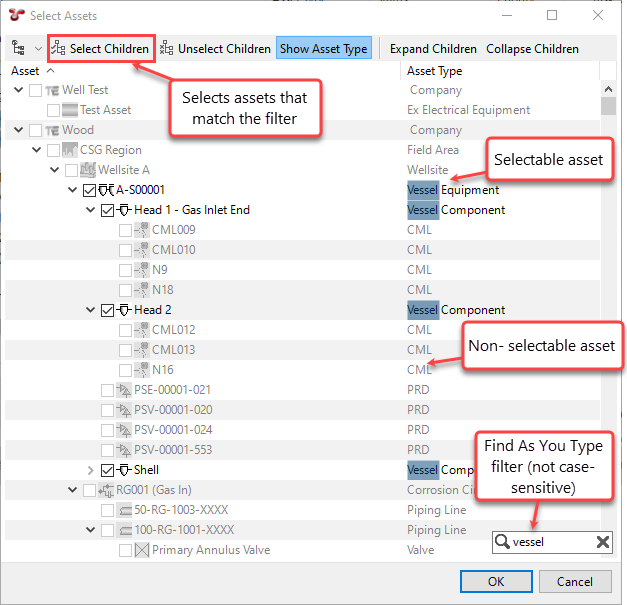
When filtering a tree, unmatched rows are not hidden. Instead, they are greyed out. This allows you to continue expanding nodes to reach child assets that may match the filter.
If you are in a dialog that allows you to select multiple assets (for example, the Copy Assessment feature on the Risk tab, or on the ANOMALIES Screen), any assets that do not match the filter are automatically unselected. In this case, you can use Select Children as follows:
Select the root asset.
Enter the text you want to filter for, for example, an asset type.
Click Select Children.
Verify that all assets matching the filter are selected.
Note
When using In-Grid Filtering in an asset tree on the ASSETS, PLANNING or INSPECTION screens, you can perform a full asset search instead of filtering. For more information, see Searching.