Discussions
The Discussions feature allows users to collaborate directly within NEXUS IC by posting comments against supported records and mentioning other users.
Discussions are available for:
Workpacks (see Add/Edit Workpack Dialog)
Anomalies (see Add/Edit Anomaly Dialog)
Findings (see Add/Edit Finding Dialog)
Risk Assessments (see Edit Risk Assessments)
Open Discussions
To view discussions for a record, select the  Expand discussions icon in the upper-right corner of the relevant dialog.
The Discussion panel opens and displays all existing comments associated with the record.
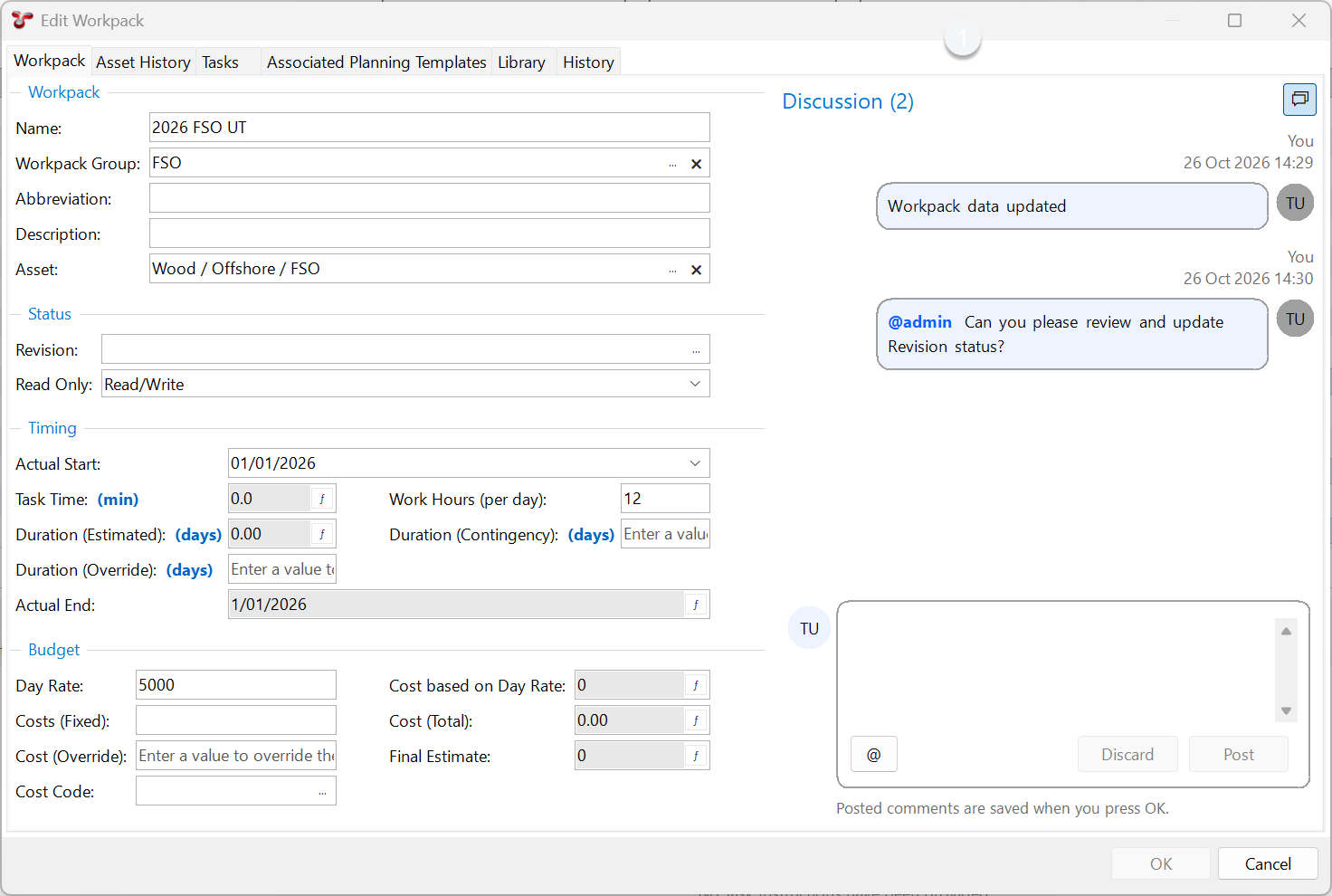
Create a Comment
To add a comment:
Open the Discussion panel.
Enter your comment.
Select Post.
Click OK to save your comment.
The new comment is added to the discussion thread and becomes visible to other users who have access to the record.
Mention Users
You can notify another user by mentioning them in a comment.
To mention a user:
Type or click @ followed by the first letters of the user’s name.
Select the required user from the autocomplete list.
Complete and post the comment.
Click OK to save.
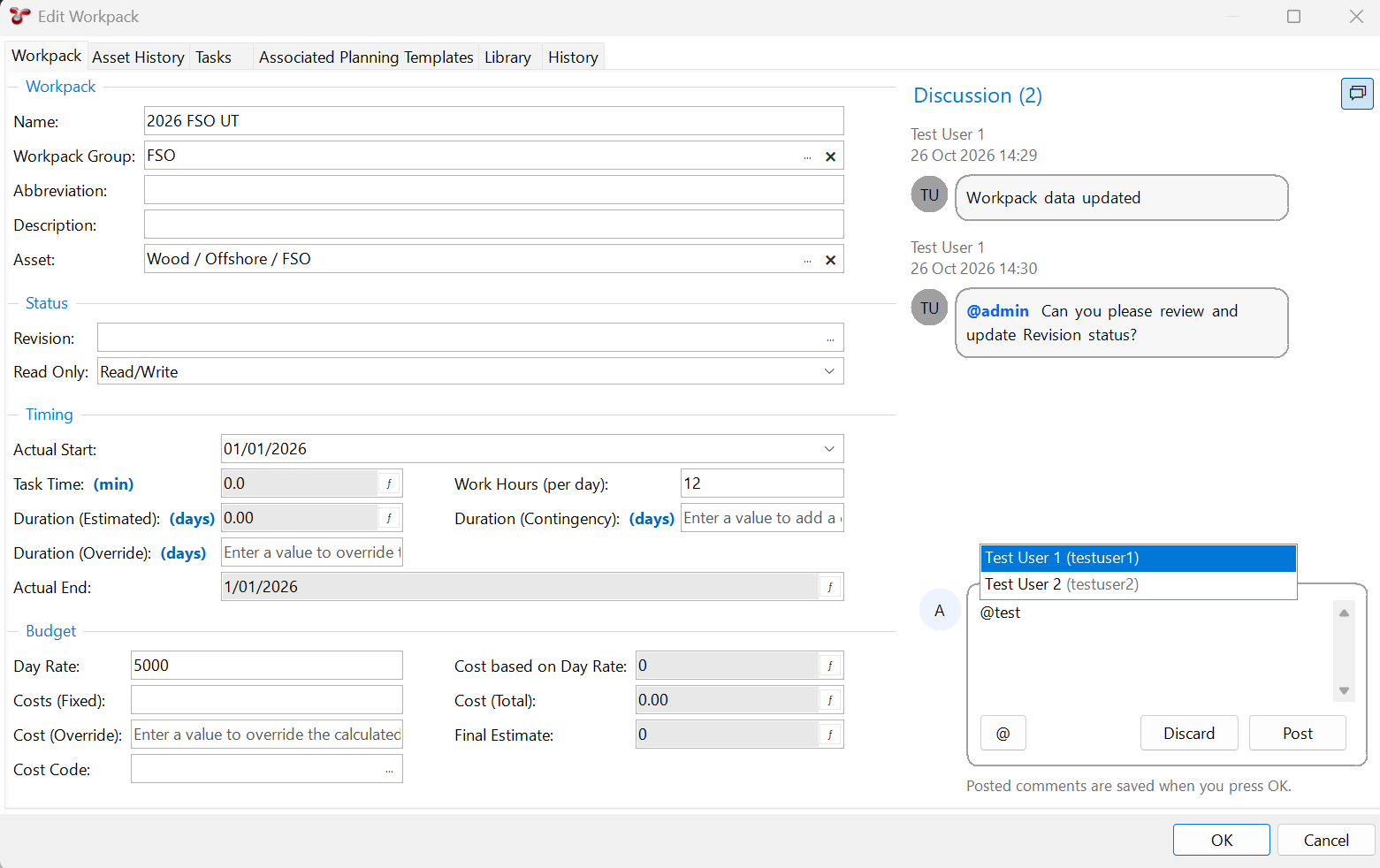
When the comment is posted, the selected user receives a notification. The notification is displayed in a notification banner at the bottom of the user’s application.
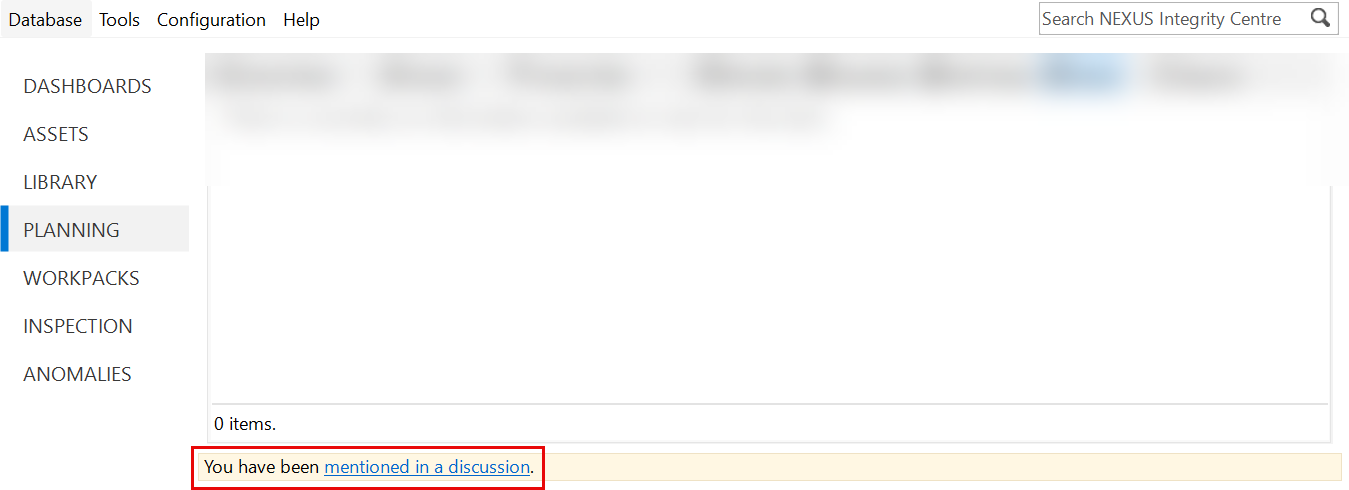
View Mentions
You can view all mentions by:
Clicking the link in the notification banner
Choosing from the menu.
The Mentions screen displays all discussion comments in which you have been mentioned.
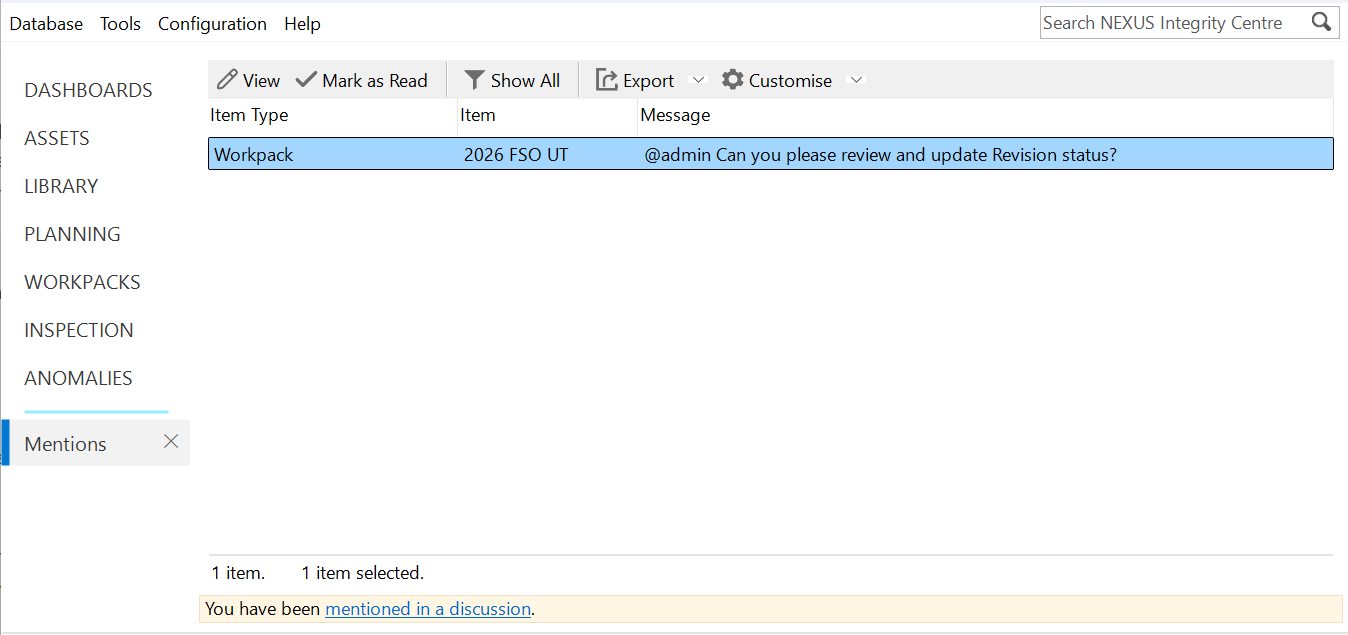
From this screen, you can:
Select View in the toolbar to open the record containing the discussion comment. The mention is automatically marked as read.
Select Mark as Read to mark the selected mention as read without opening the associated record.
Enable Show All to display all mentions, including those that have already been read. When Show All is disabled, only unread mentions are displayed.
Select Export to export the displayed mentions.