Example: Create and Deploy Expert System Using Offline Template
This example shows the end-to-end process of creating a new expert system, exporting it to a template and importing it in the destination database.
Procedure
Open the source database and from the menu, navigate to .
Create the new expert system.
Choose Add
 .
.Enter a name that identifies the expert system, the name of the owner, and in the Comments field, provide a brief description about the purpose and content of the expert system configuration
 .
.Click OK to save the expert system
 .
.
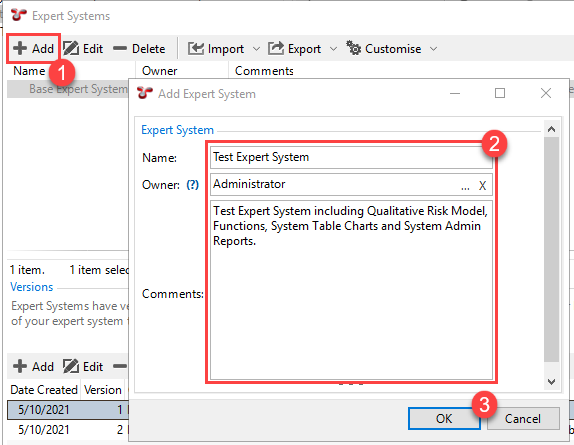
Add elements to the expert system as required.
Select the new expert system in the upper section of the Expert Systems screen
.Click Edit
.Select the elements you want to include in the expert system either on the Asset Type or the Advanced tabs
.Click OK to save the expert system
 .
.
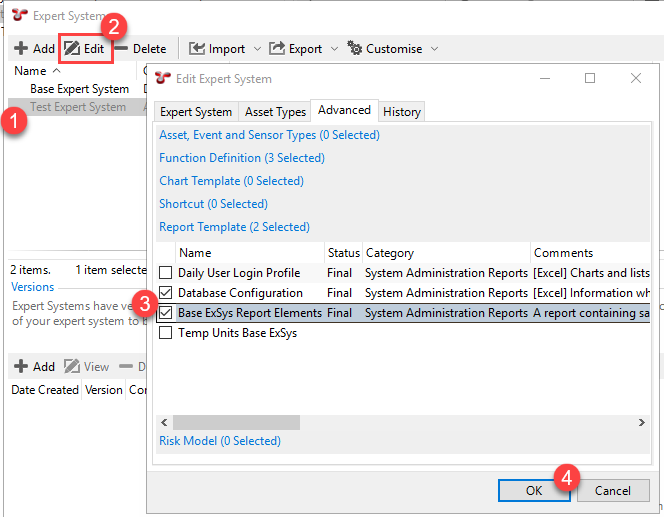
Add a version to the expert system.
Select the expert system in the upper section of the Expert Systems screen
.In the bottom section of the screen, under Versions, choose Add
.Enter a description for this version in the Comments field. The date and version number is auto-populated
.Click OK to save the version
.
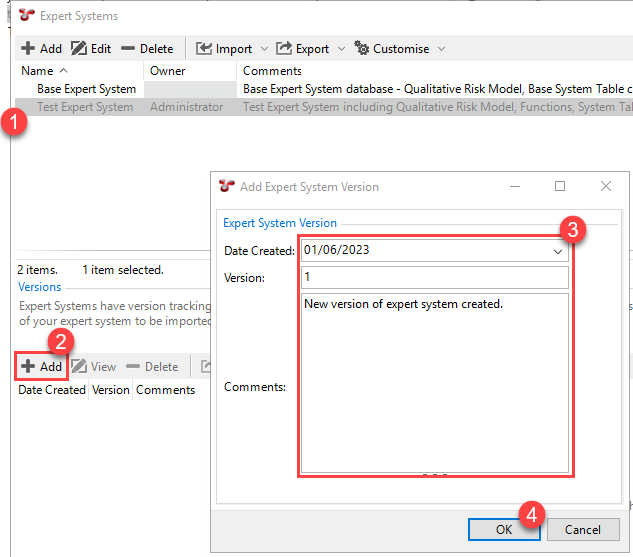
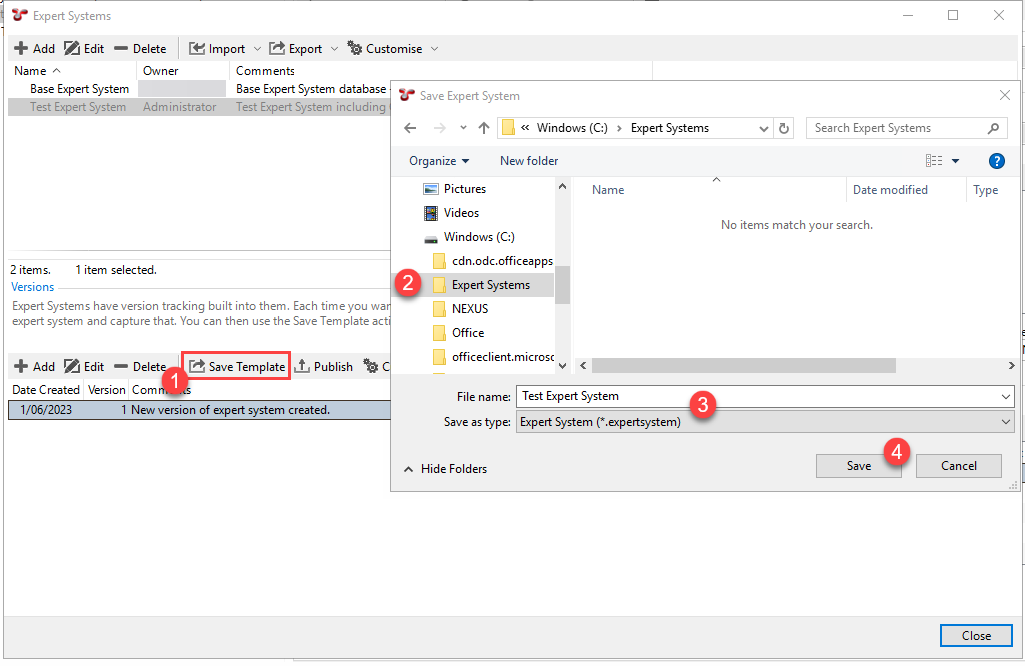
Save the created expert system version into an offline template.
On the Expert Systems screen, under Versions, click Save Template in the bottom toolbar
.Select the destination folder where you want to save the template
and enter the name of the expert system. Keep the extension as *.expertsystem.Click Save
.
Open the destination database and navigate to from the menu.
In the top toolbar of the Expert Systems screen, click .
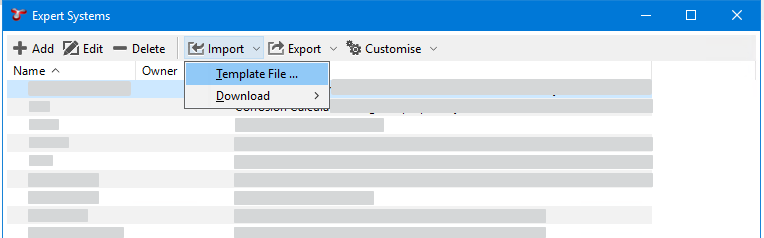
Navigate to the expert systems file that you want to import.
Click Open.
Result
NEXUS retrieves the configuration template and makes the required changes in the destination database. It applies all the new or changed elements but it does not touch elements that are unchanged or exist in your database additionally.
Close and reopen the database for the changes to take effect.