Risk
You can display risk assessment results for the currently selected asset and all its children on the Risk tab of the ASSETS screen. The visibility of this tab can be toggled on or off under the View toolbar option.
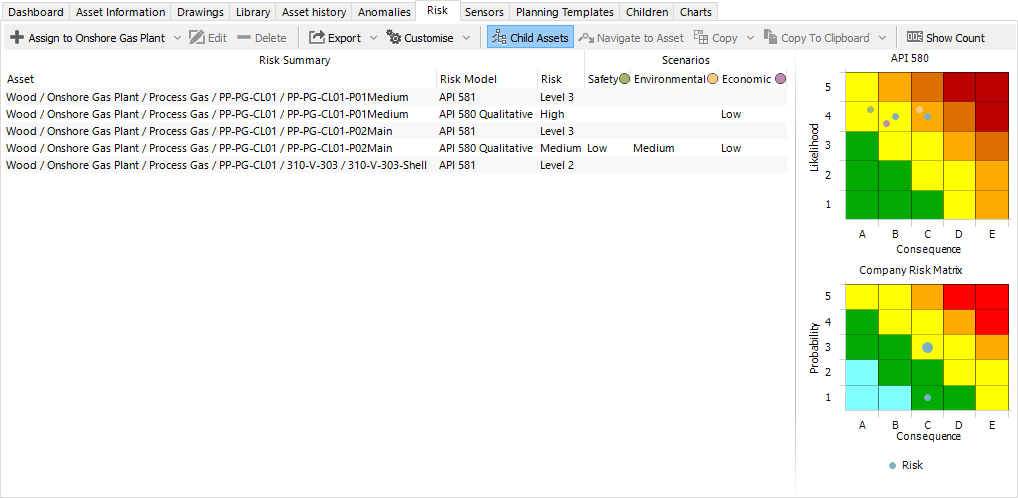
Risk assessment results for the currently selected asset and, optionally, its child assets are displayed in preconfigured risk matrices and in a data grid, as shown below:
Prerequisites
To enable displaying risk models for assets, you must ensure the following:
Risk charts and risk models have been configured (see Configure Risk Charts and Configure Risk Models).
The relevant risk models have been assigned to the asset type of the asset (see Assign Risk Models to Asset Type).
Risk models have been assigned to the asset (see Assign Risk Models).
Display Options
When viewing risk assessment results, note the following:
Where multiple risk assessments occupy the same position in the matrix, the corresponding indicator is displayed larger.
Selecting a row in the grid highlights the corresponding indicator in the matrix.
Selecting an indicator in the matrix highlights the corresponding row or rows in the grid.
If you are using scenarios, each scenario is displayed in its own colour.
Scenario indicators may be offset slightly within the same matrix square. This is for readability only and does not indicate a difference in risk.
Selecting a scenario indicator highlights the corresponding scenario in the grid and also highlights the same asset’s other scenarios in the matrix.
Select Show Count to display the number of risk assessments at each matrix location.
Managing Risk Assessments and Scenarios
The Risk tab supports the following activities:
Assigning risk models to assets. For more information, see Assign Risk Models.
Reviewing and updating risk assessments. For more information, see Edit Risk Assessments.
Creating and managing scenarios for risk assessments. For more information, see Manage Risk Assessment Scenarios.
Risk assessments are created when a risk model is assigned to an asset. You can then update assessment values, compare the results of different scenarios and analyse the resulting risk positions in the risk matrix.
Risk Toolbar
Toolbar Option |
Description |
|---|---|
Choose from the list of pre-configured risk models in the drop-down menu to assign a risk model to the currently selected asset. For more information, see Assign Risk Models. |
|
Opens the risk assessment editor (Edit Risk Assessment dialog), where you can review and update risk assessment values and manage scenarios. For more information, see Manage Risk Assessments and Scenarios. |
|
Removes the selected risk assessment or scenario from the asset. The asset itself and any associated asset information remain unchanged. |
|
Copies the selected risk assessment to one or more assets without any associated scenarios. For more information, see Assign Risk Models. |
|
Copies the selected risk assessment together with all associated scenarios to one or more assets. For more information, see Assign Risk Models. |
|
Creates a scenario from the selected risk assessment. For more information, see Manage Risk Assessment Scenarios. |
|
Copies the displayed risk matrix to the clipboard as an image. |
|
See Connections. |
|
See Export. |
|
See Customise. |
|
Includes risk assessments for child assets of the currently selected asset. |
|
Changes the active asset in the hierarchy to the asset associated with the selected risk assessment. The Risk grid is then filtered to display only assessments for the selected asset. |
|
Displays the total number of risk assessments at each position in the matrix, as shown below: 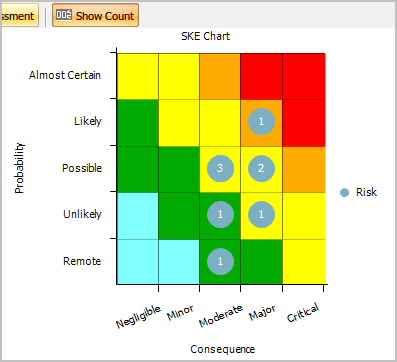
|